How to Send Branded PDF Invoices from Excel in Under 2 Minutes
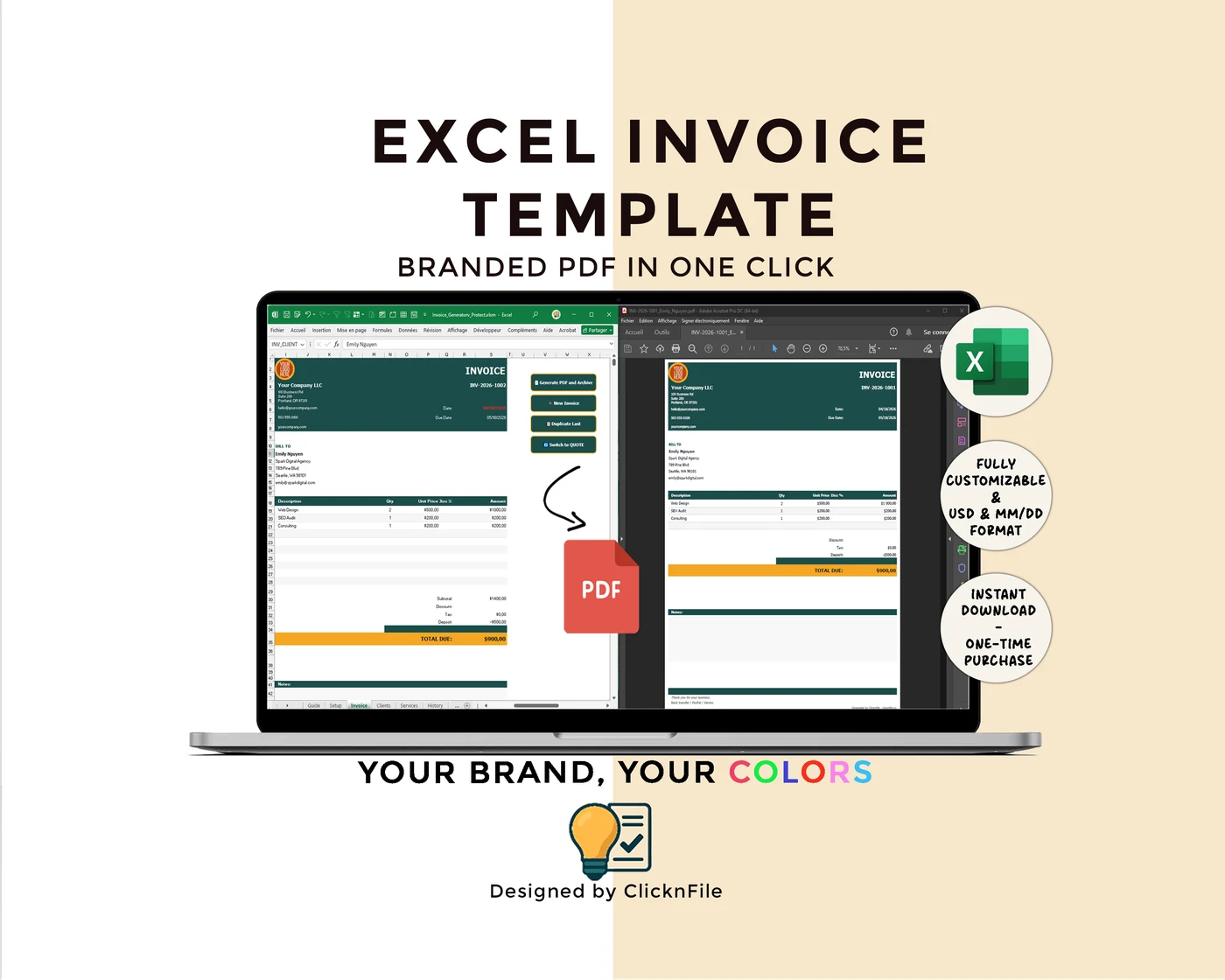
Most freelances and small businesses do one of three things to send an invoice. None of them are good. There is a fourth option, and once it is set up, every invoice takes you under two minutes. Same Excel you already use, with the branding and PDF export built in. Here is exactly how the workflow runs.
The three bad options most people use today
Before the workflow, the problem. When you bill a client, here is what most freelances and small business owners actually do.
- Option A. Copy values from Excel into Word, fight with the layout for ten minutes, export to PDF, redo the same branding next time. Pretty, but slow and manual.
- Option B. Pay $15 to $30 a month for a SaaS that you use five times a month. Fast, but you rent the tool forever for a job Excel could already do.
- Option C. Send the raw Excel file to your client. Fast, free, and unprofessional. (Please do not.)
The fourth option is the one this article is about. Stay in Excel. Add the missing parts. Two minutes per invoice, no subscription.
Why Excel still wins for invoicing
Excel is still the right base for invoicing for four reasons most people forget once they have been pitched a SaaS.
- It calculates everything natively. Subtotals, tax, discounts, totals. No formula bugs you cannot inspect.
- You own the data. The .xlsx file lives on your machine. You can email it to your accountant, back it up, archive it for seven years. You will not lose it the day a vendor shuts down.
- It works offline. No login, no two-factor auth, no "service unavailable" page when you need to invoice from a train.
- No vendor lock-in. The format is open. Your invoices today will open the same way in 2035.
The one thing vanilla Excel does not do well is brand-consistent PDF export and orderly archiving. That is the gap. If you can solve that without leaving Excel, you keep all the upsides above and lose the only real downside. That is exactly what the workflow below does.
The 3 friction points to solve
If you have made invoices in Excel for any length of time, three problems show up every time.
Branding consistency
Your logo lives in one folder. Your brand colors live in your head. The invoice layout drifts every time you copy-paste from the previous file. Each invoice ends up slightly different. Clients notice. The fix is to define the branding once, store it as data inside the workbook, and have the invoice template pull from those settings every single time.
Numbering and archiving
Manual numbering gets messy fast. You skip a number. You re-use one. You cannot remember if invoice 2026-007 was paid. Within six months, you have a folder full of Facture_v2_FINAL_corrected.pdf files and no clear ledger. The fix is auto-incrementing numbers with a clean prefix (something like INV-2026-1001) and a single sheet inside the workbook that lists every invoice ever sent, with status.
Speed
Two minutes is the bar. Anything longer means you will procrastinate sending invoices, and unsent invoices are just unpaid invoices waiting to happen. To hit two minutes, the only thing you should type per invoice is: client (or pick from list), services, amounts, due date. Everything else (header branding, numbering, totals, formatting, PDF export, archive entry) should run on its own.
The ideal workflow, step by step
Set up once
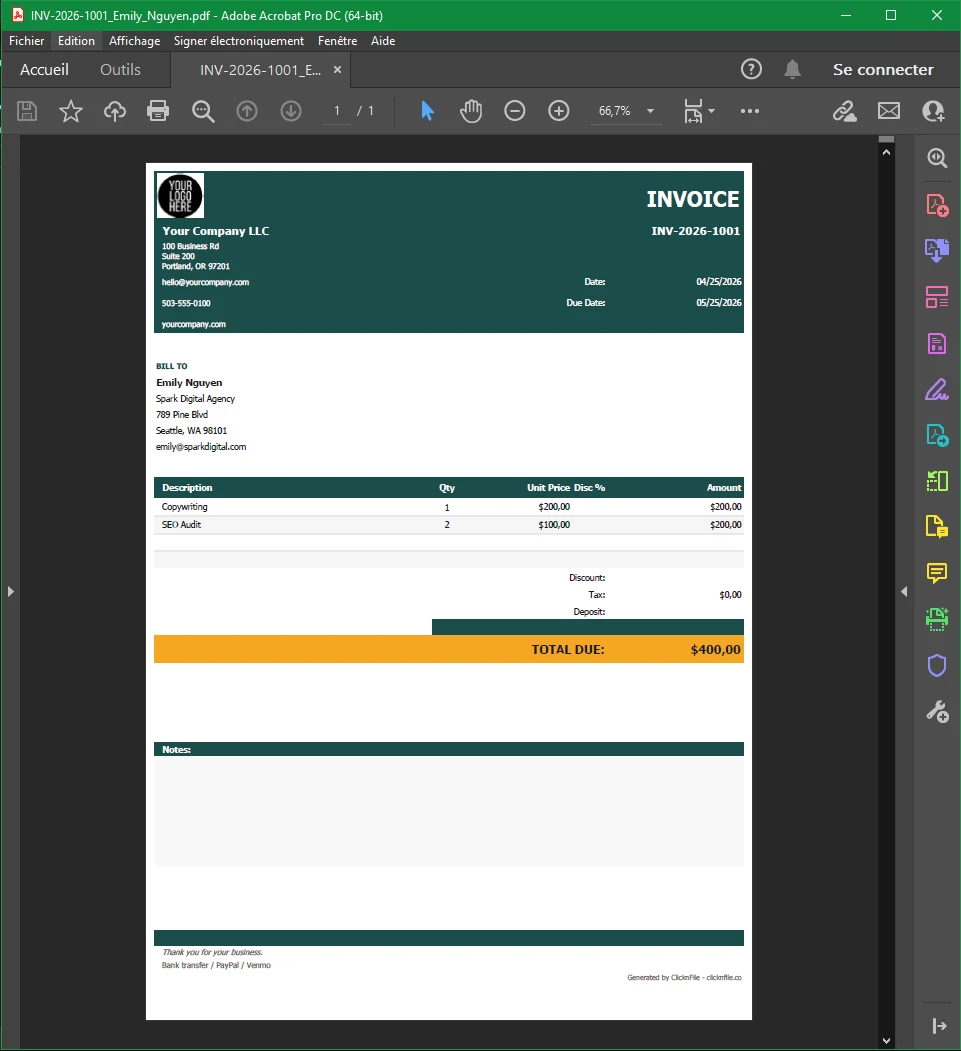
Open the workbook. Enter business info: name, address, tax ID, phone, email. Paste hex codes for primary and accent colors. Drop the logo file into the Setup sheet. Save. You are done with setup forever.
Save clients and services to a database
Create a Clients sheet with the names, emails, and addresses of everyone you bill. Create a Services sheet with your usual line items, descriptions, and unit prices. Now every invoice starts by picking from a dropdown, not by typing the same address for the eighteenth time.
Toggle invoice or quote
Same template, two modes. A toggle at the top switches the document title from "INVOICE" to "QUOTE" and adjusts the validity wording. You stop maintaining two separate files.
Auto-numbering
The next invoice number is computed from the last one used in the History sheet. INV-2026-1001 becomes INV-2026-1002 with no input from you. The number locks into the file the moment you generate the PDF, so you can never reuse it by accident.
One-click PDF generation
A single button on the invoice sheet exports the current document to PDF, named with the invoice number and client (INV-2026-1002_AcmeCorp.pdf), and saves it next to the workbook. The branding is already correct because it pulled from Setup.
Auto archive and Mark as Paid
The same button writes a row to the History sheet: number, client, date, amount, due date, status (Sent). When the client pays, you click "Mark as Paid" on that row. Now you have a one-page ledger of every invoice you have ever sent and which ones are still outstanding.
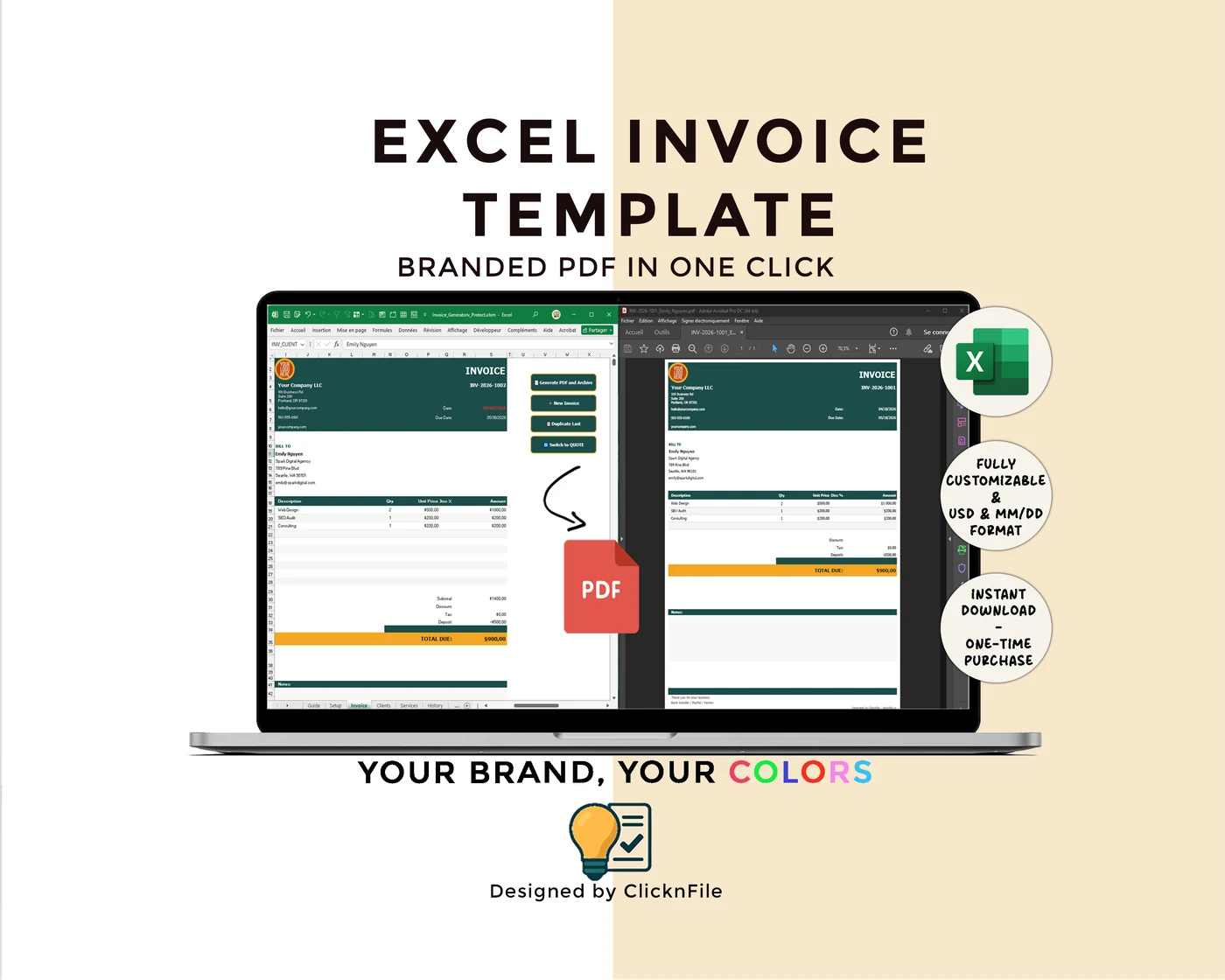
That is the entire workflow. Setup once, then per invoice: pick the client, add line items, click Generate. Two minutes. The rest of your day is yours.
Honest limits to know before you commit
Three things to know before you buy or build something like this.
- Windows only, with desktop Excel 2016 or later. Mac Excel handles VBA macros poorly enough that one-click PDF export is not reliable. Excel Online and Google Sheets do not run macros at all. If your work is on Mac, this approach is not for you.
- Macros must be enabled. The first time you open the file, Excel will warn you. You will need to click Enable Content. This is normal for any workbook that automates anything.
- The standard scope. Up to 10 line items per invoice, USD currency, MM/DD/YYYY dates, no multi-currency. If you invoice in EUR and USD on alternating Tuesdays, you need a custom version.
That is the honest scope. Inside it, the workflow above is solid.
The product I built around this exact workflow
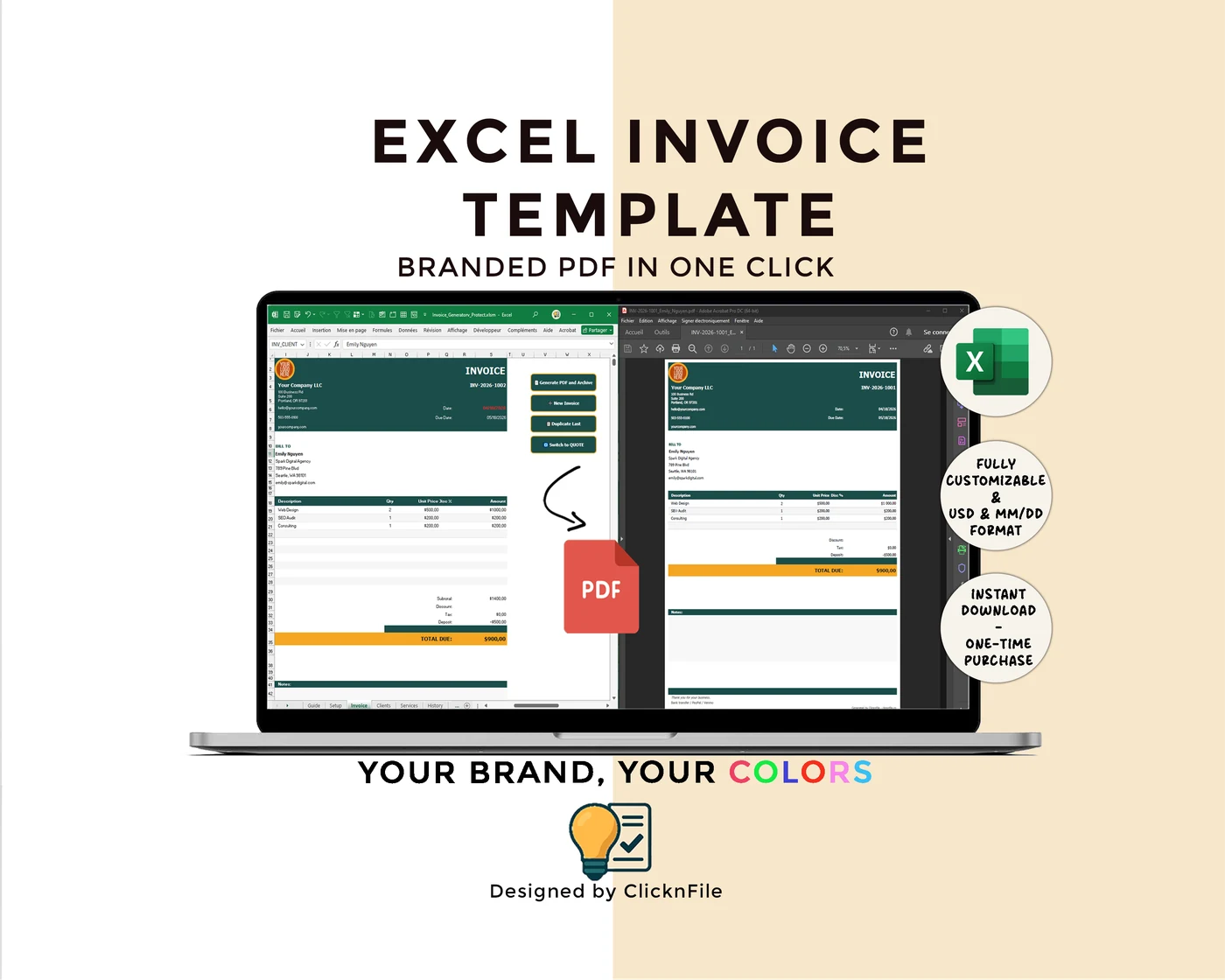
Branded Excel Invoice Template
- One .xlsm Excel workbook plus a User Guide PDF
- Setup sheet, Clients database, Services database
- Invoice template with INVOICE / QUOTE toggle and auto-numbering
- History ledger with Mark as Paid
- One-click PDF export (branded, properly named, auto-archived)
- License: 1 user, 1 business
- Direct message support if anything breaks
You replace my placeholder logo and brand colors with yours during the first 60 seconds. After that, it is your invoice template, in your colors, sending PDFs in two minutes per bill.
If you would rather build this yourself from scratch, the workflow above is the blueprint. Either path is fine. The point is to stop paying $15 a month for something Excel can already do in two clicks.
FAQ
Stop renting what Excel already does
One workbook. Branded PDFs in two minutes. No subscription, ever.
Get the template on Etsy → $22.05